

Generate Logos with Claude Using the Brandize MCP Server
Quick Answer
Connect the Brandize MCP server to Claude Code or Claude Desktop, then give Claude a specific brand brief. It can call free tools for a five-color palette, page meta tags, and Organization schema. For a logo, choose a package and confirm the design details first: Brandize returns a watermarked preview and a checkout link, while the full-resolution files unlock after payment. The connection guide and current tool list are at brandize.me/mcp.
Claude can suggest a logo direction for a launch page. With Brandize's MCP server connected, it can also return a watermarked logo preview, a five-color palette you can paste into CSS, and markup you can inspect. The logo preview comes with a checkout link if you want the production files.
Connect Claude, then check the tools
Claude Code can connect to the hosted Brandize server as a plugin or a remote HTTP MCP server. Claude Desktop can use a custom remote connector. The setup section has the current instructions for both; the connection details list the endpoint, transport, and limits. If a Claude Code session has already been open, check its /mcp view after connecting.
Once the connection is available, start small. Ask Claude to call Brandize's echo tool with a short message. If the same message comes back, the server is reachable. Then ask it what Brandize tools it can see. This catches a missing or stale connection before you spend time writing a design brief. If a tool is missing, reconnect and use the troubleshooting notes.
Claude on the web and Claude Desktop share the remote connector route. Claude Code also supports remote HTTP servers, as Anthropic's MCP documentation describes. You only need one route for the Claude client you're using.
Give Claude a brief it can work with
Suppose you're launching a small coffee roastery called North Pier Coffee. Try a prompt like this:
I need brand assets for North Pier Coffee, a small-batch roastery. Start with a five-color palette based on #3B2A1E, then draft a home-page title and description and an Organization JSON-LD block. Use example.com as a placeholder URL; I will replace it before publishing. After that, ask me for the remaining choices needed for a logo preview. Do not choose a paid package for me.
The name, base color, and business description give the free tools usable inputs. Replace the placeholder with your real site URL before publishing meta tags or schema. For a logo preview, Claude should ask about any missing choices: package, style, layout, main color, industry, and primary use surface. You can review the palette first, then decide whether to carry its color into the logo.
A real palette tool call and response
To see what happens beneath the chat, I called the live Brandize endpoint with its free generate_color_palette tool. This is the MCP request for a blue base color; Claude normally handles the request format for you:
{
  "jsonrpc": "2.0",
  "id": 1,
  "method": "tools/call",
  "params": {
    "name": "generate_color_palette",
    "arguments": {
      "baseColor": "#3B82F6",
      "harmony": "complementary",
      "format": "hex"
    }
  }
}
The server returned this text in its response:
Primary: #3b82f6
Light: #84b1f9
Dark: #0a59da
Complement: #f6af3b
Complement Light: #f9cd84
Those are the actual values from the live call, not a palette invented for the article. The worked example on the MCP page shows the response envelope too. For North Pier Coffee, use the brown from the brief instead of the blue above and look at the returned swatches before committing to them. A generated palette still needs a contrast check against the backgrounds and text sizes on your site.
Turn the same brief into web assets
The free tool list includes generate_meta_tags and generate_schema_markup. Ask Claude for the page title, description, and canonical URL you actually want before it calls the first one. Brandize returns an HTML block you can review. In a live call with the North Pier Coffee sample, the output included a <title>, description, robots tag, and canonical link. It did not publish anything to a website.
For Organization schema, give Claude the real business name and site URL. The tool returns a JSON-LD <script> block. My sample call with a placeholder URL returned "@type": "Organization", "name": "North Pier Coffee", and that placeholder under "url". Replace the URL and check every claim before adding the block to a page. If you don't yet have a public logo file, leave its URL out rather than making one up.
Claude can carry the business description through the palette and page assets, and you can correct it in ordinary language. The outputs are separate files or snippets. You still choose which colors to use and where the markup belongs.
When you're ready for the logo preview
Ask Claude to show the current packages with get_pricing_tiers, then choose one. Give it the visual style, layout, main color, industry, and where the logo must work best, such as a storefront sign or social avatar. "Make it professional" leaves too much open; "minimal wordmark that stays readable on a storefront sign" gives the tool a usable constraint.
I used the North Pier Coffee brief above to call generate_logo on Brandize's development server. This was a test run for a fictional business, with the PREMIUM package selected:
{
  "jsonrpc": "2.0",
  "id": 275,
  "method": "tools/call",
  "params": {
    "name": "generate_logo",
    "arguments": {
      "tier": "PREMIUM",
      "brandName": "North Pier Coffee",
      "whatItDoes": "Small-batch coffee roastery",
      "industry": "cafe-restaurant",
      "style": "minimalist",
      "layoutIntent": "wordmark",
      "primaryUseSurface": "storefront-sign",
      "colorPrimary": "#3B2A1E",
      "antiReference": "Avoid coffee cup icons and tiny decorative lettering"
    }
  }
}
The development server returned a PNG image block and a text response containing a job token, preview URL, and test checkout URL. Here are the relevant fields, with the token and URLs redacted:
{
  "jobToken": "[redacted]",
  "tier": "PREMIUM",
  "previewUrl": "[development URL redacted]",
  "checkoutUrl": "[test checkout URL redacted]"
}
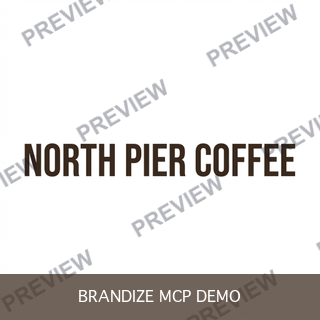
This is the actual 320-pixel preview from that call. Brandize stamped PREVIEW across it, and I added the BRANDIZE MCP DEMO band with ImageMagick to mark it as a sample. The wordmark is a starting point to review, especially at storefront distance. It is not a production file, and I did not complete checkout.
Review a preview before opening checkout. Brandize does not deliver the full-resolution files from the preview call. If you decide to buy, the hosted checkout collects payment and acceptance of the terms; get_logo_result can retrieve the finished files after payment settles. The payment and consent section explains that handoff.
The palette, meta tags, and schema are available without buying a logo. If you need production logo files, review the preview and follow the checkout flow described in the Brandize MCP hub.
Ready to create your logo?
Generate a professional SVG + PNG logo in under 30 seconds.
